Hilfe zur dbonAppdbonApp help
BelegeinreichungSubmitting receipts
Wie reiche ich einen Einzelbeleg ein?
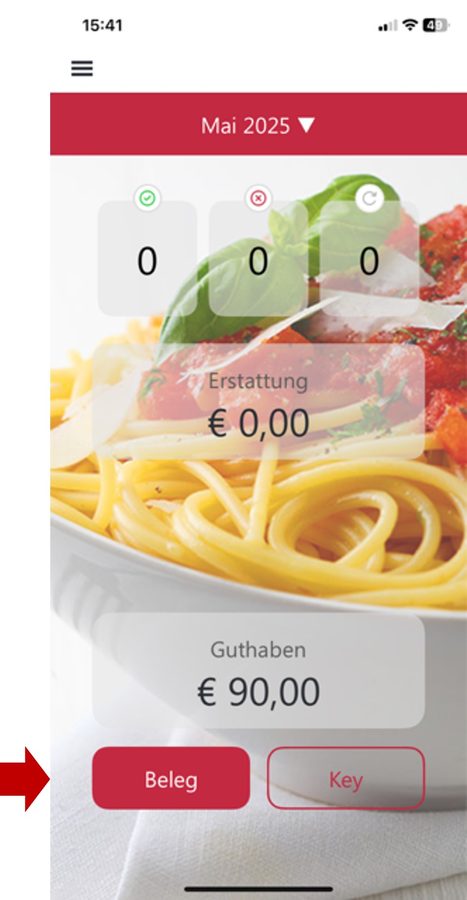
1. Wähle auf der Startseite der dbonApp den Punkt "Beleg".
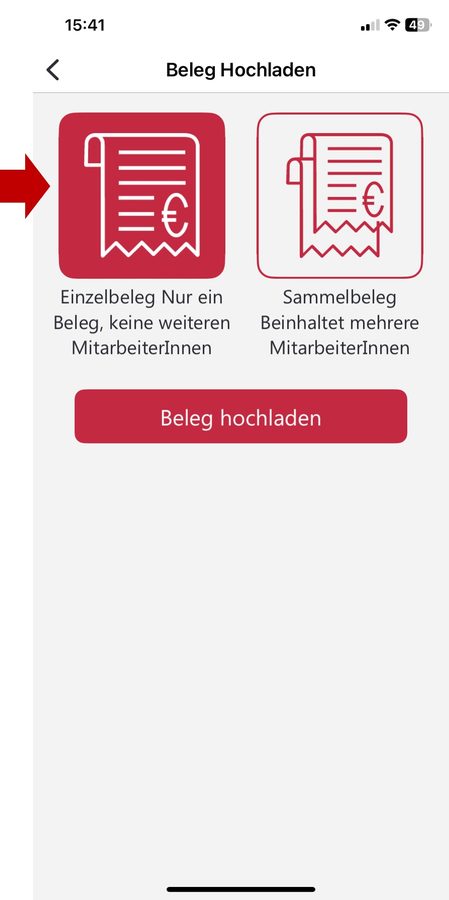
2. Wähle die Option "Einzelbeleg".
3. Wähle anschließend "Beleg hochladen" und folge den weiteren Anweisungen in der App.
Wie reiche ich einen Sammelbeleg ein?
Ein Sammelbeleg wird in zwei Schritten eingereicht:
Schritt 1: Ein Mitarbeiter reicht den Beleg als Sammelbeleg ein.
Falls du selbst den Sammelbeleg startest, gehst du wie folgt vor.
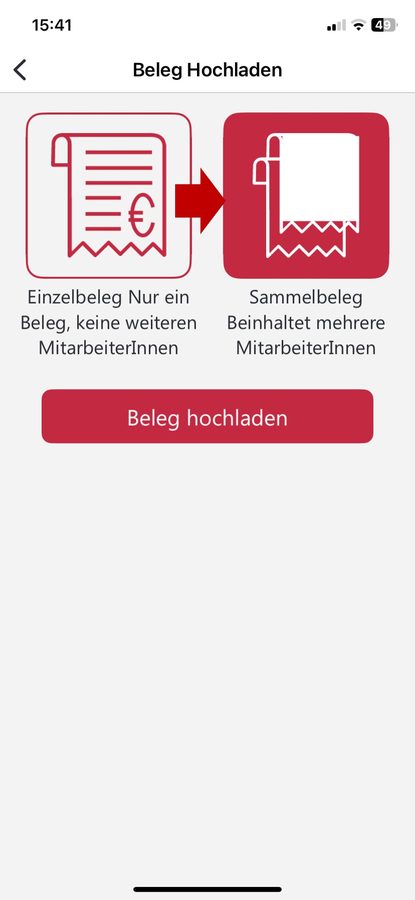
1. Wähle den Belegtyp "Sammelbeleg"
2. Gib die Sammelbelegdaten eingeben
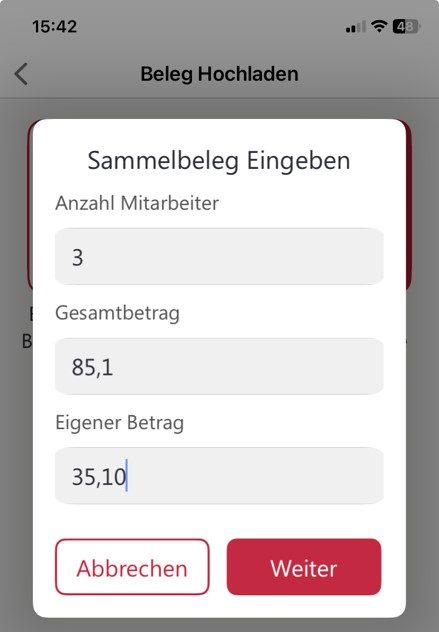
- Anzahl Mitarbeiter: 3
(Wie viele Mitarbeiter teilen sich diese Rechnung - inklusive dir selbst) - Gesamtbetrag: 85,10
(Gesamtsumme der Rechnung) - Eigener Betrag: 35,10
(Dein persönlicher Anteil an der Rechnung)
Nach dem Einreichen erscheint ein Beleg-Key
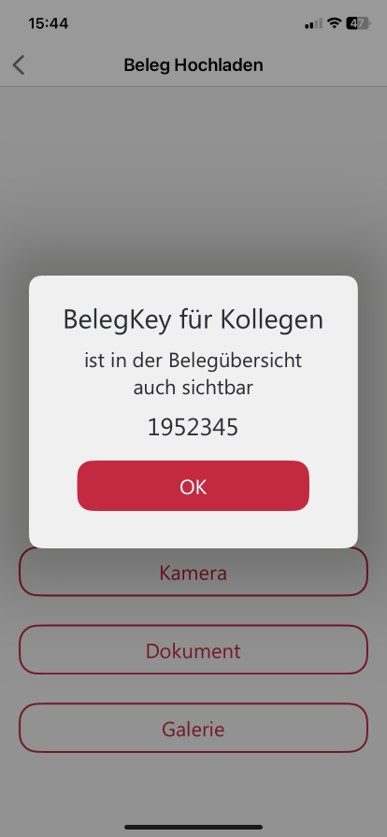
Bitte teile diesen Beleg-Key mit den Kollegen die ebenfalls Anteile am Sammelbeleg einreichen möchten.
Hinweis: Der Beleg-Key ist später auch bei den eingereichten Belegen in deiner App sichtbar.
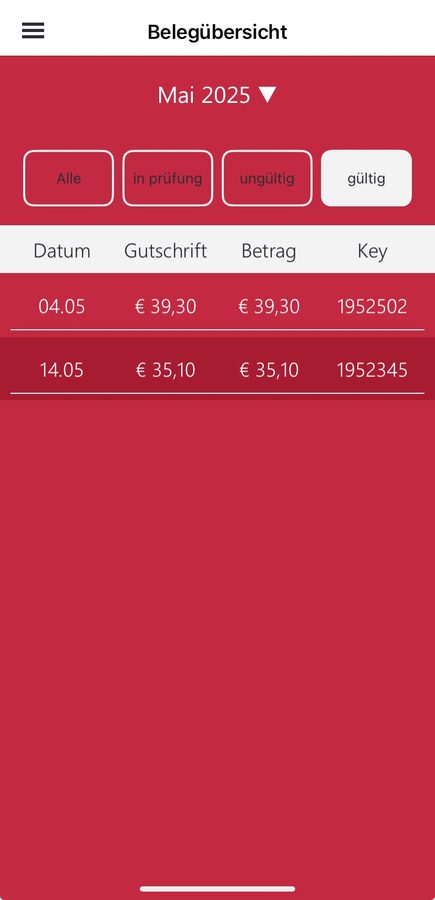
Schritt 2: Dein Arbeitskollege hat den gemeinsamen Sammelbeleg bereits eingereicht und teilt dir den Beleg-Key mit.
1. Wähle auf der Startseite der dbonApp die Option "Key"
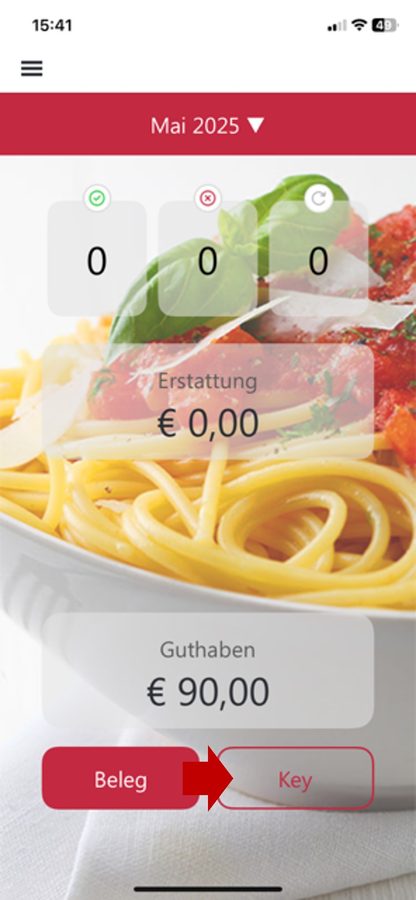
2. Gib den erhaltenen Beleg-Key ein
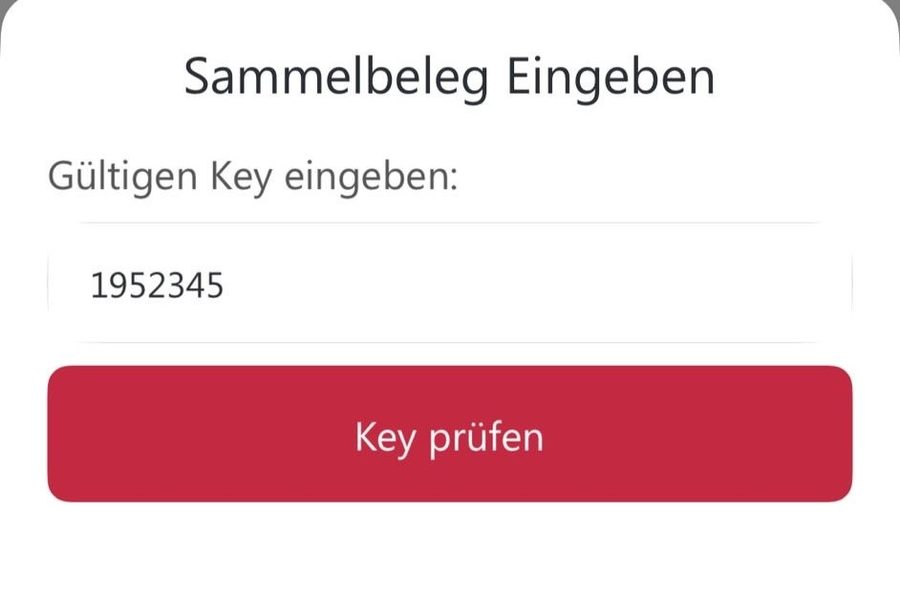
Du siehst nun welcher Betrag noch nicht vergeben ist und du kannst den Beleg ansehen.
Bitte gib nur deinen Betrag vom Beleg ein. Sobald der volle Betrag oder die Anzahl der Mitarbeiter erschöpft sind, können sich keine weiteren Mitarbeiter mehr an den Beleg anhängen.
How do I submit a single receipt?
1. Select "Receipt" on the start page of the dbonApp.
2. Select the option "Single receipt".
3. Then select "Upload receipt" and follow the further instructions in the app.
How do I submit a shared receipt?
A sharede receipt is submitted in two steps:
Step 1: An employee submits the receipt as a shared receipt.
If you start the shared receipt yourself, proceed as follows.
1. Select the document type "shared receipt"
2. Enter the shared receipt data
- Number of employees: 3
(How many employees share this receipt, including yourself) - Total amount: 85,10
(total amount of the receipt) - Own amount: 35,10
(Your personal share of the receipt
A receipt key appears after submission
Please share this receipt key with colleagues who would also like to submit shares in the shared receipt.
Note: The receipt key will also be visible later in the submitted receipts in your app.
Step 2: Your colleague has already submitted the shared receipt and provides you with the voucher key.
1. Select the "Key" option on the start page of the dbonApp
2. Enter the receipt key received
You can now see which amount has not yet been allocated and you can view the receipt.
Please only enter your amount from the receipt. As soon as the full amount or the number of employees is exhausted, no more employees can be added to the voucher.
Mehr im Hilfecenter und bei den Ablehnungsgründen. Fragen: office@digibon.at oder +43 5572 89 00 73.
More in the help centre and under rejection reasons. Questions: office@digibon.at or +43 5572 89 00 73.